
Lovense is an interactive toy platform that Creators can connect to their livestream setup. On FOMO Stream, Lovense works through the Lovense browser extension on desktop livestreams. When Lovense is fully set up and the extension is enabled, compatible toys can react to Super Chat messages during your livestream, creating an interactive experience between you and your viewers.
Before starting, make sure you:
are a Creator on FOMO Stream
are using Chrome on desktop
have a Lovense toy
Install the Lovense browser extension by following Lovense’s official documentation. This part is handled by Lovense, so we recommend using their guide directly for the most accurate and up-to-date setup steps.
In Chrome extension settings, click the Details button on the Lovense extension. Toggle Allow User Scripts and then refresh the extension.
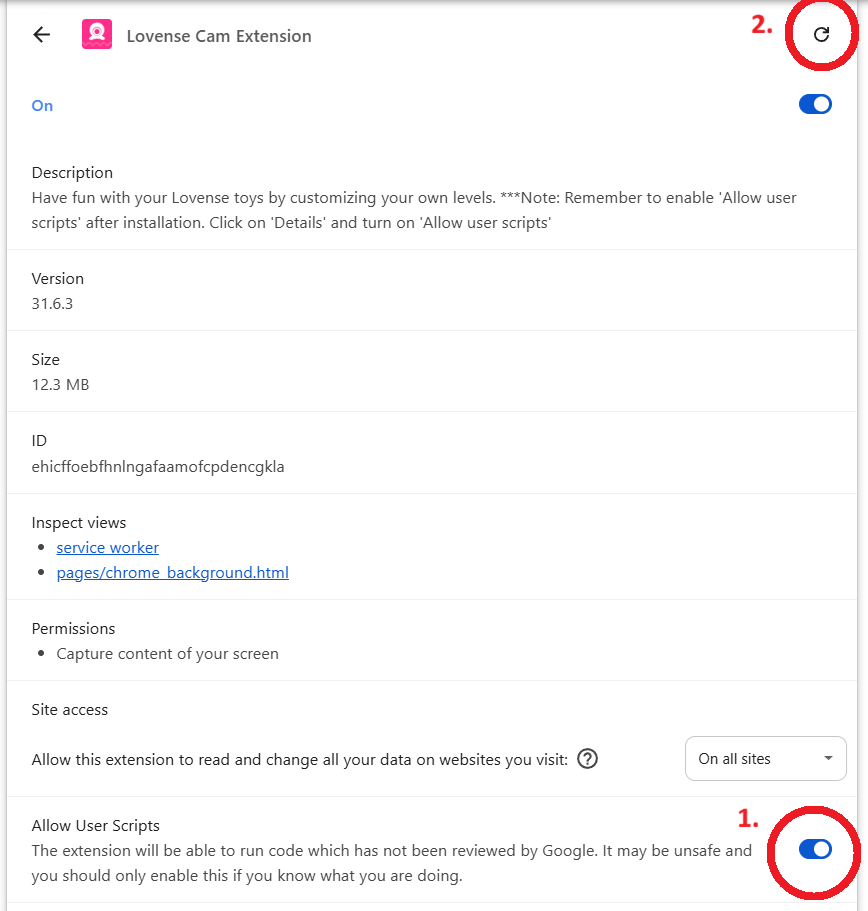
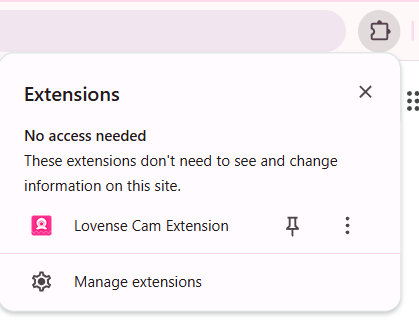
After completing the guide, you should be able to open the extension from the top-right corner of your browser and see the following:
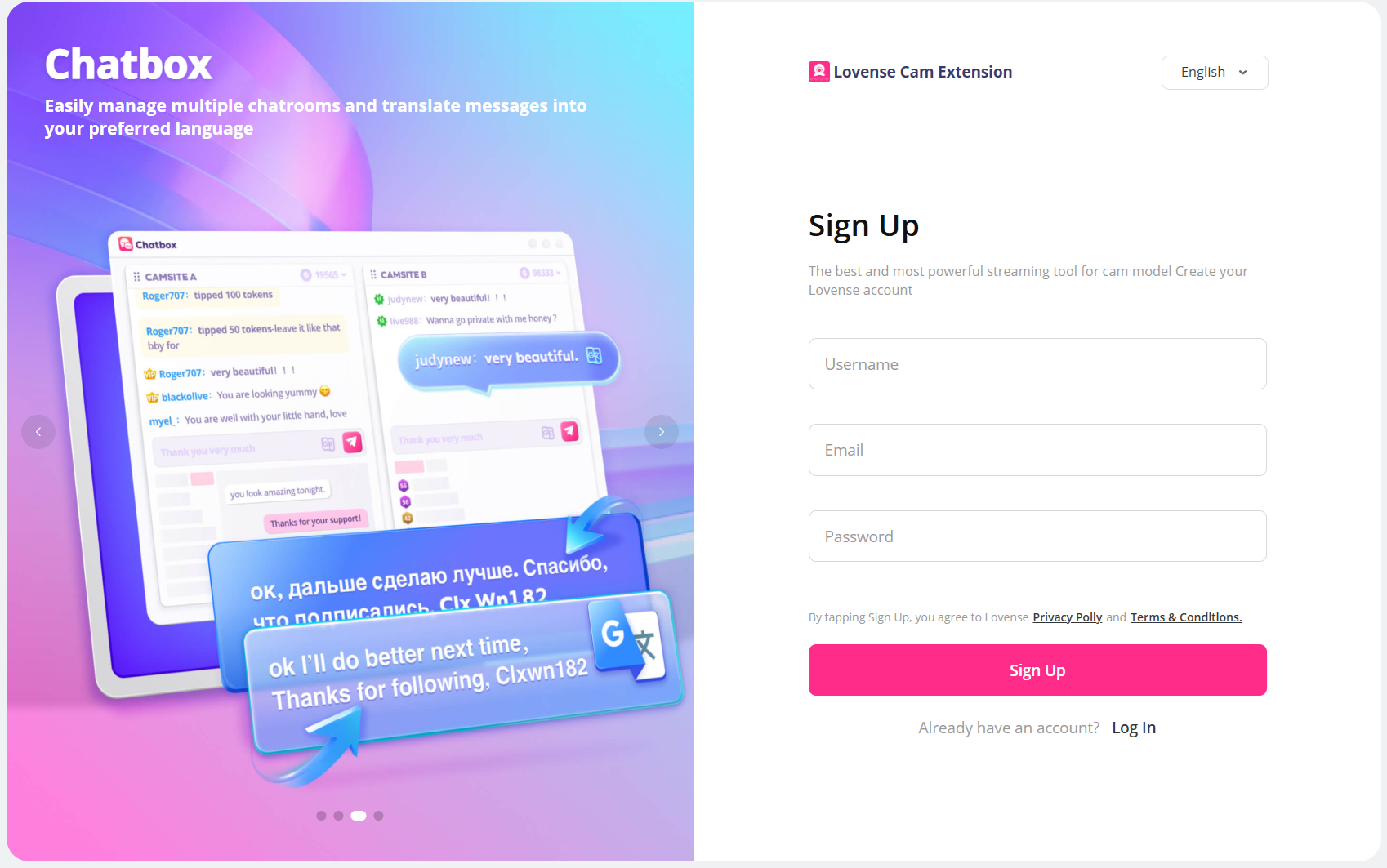
Click the Lovense extension and create your account.
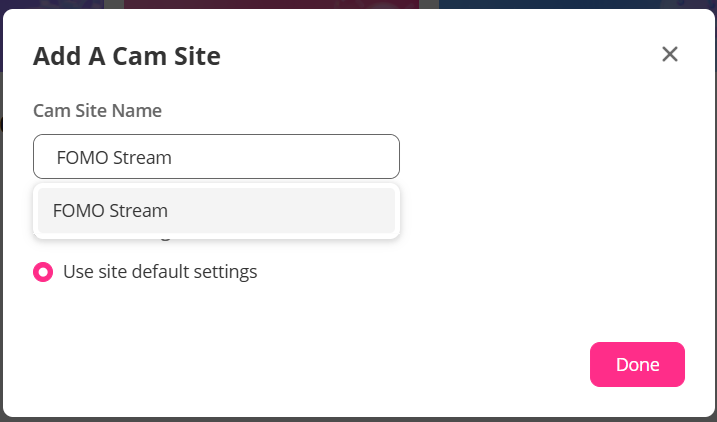
On the extension settings page, click the Plus icon next to Cam Sites in the left-hand menu.
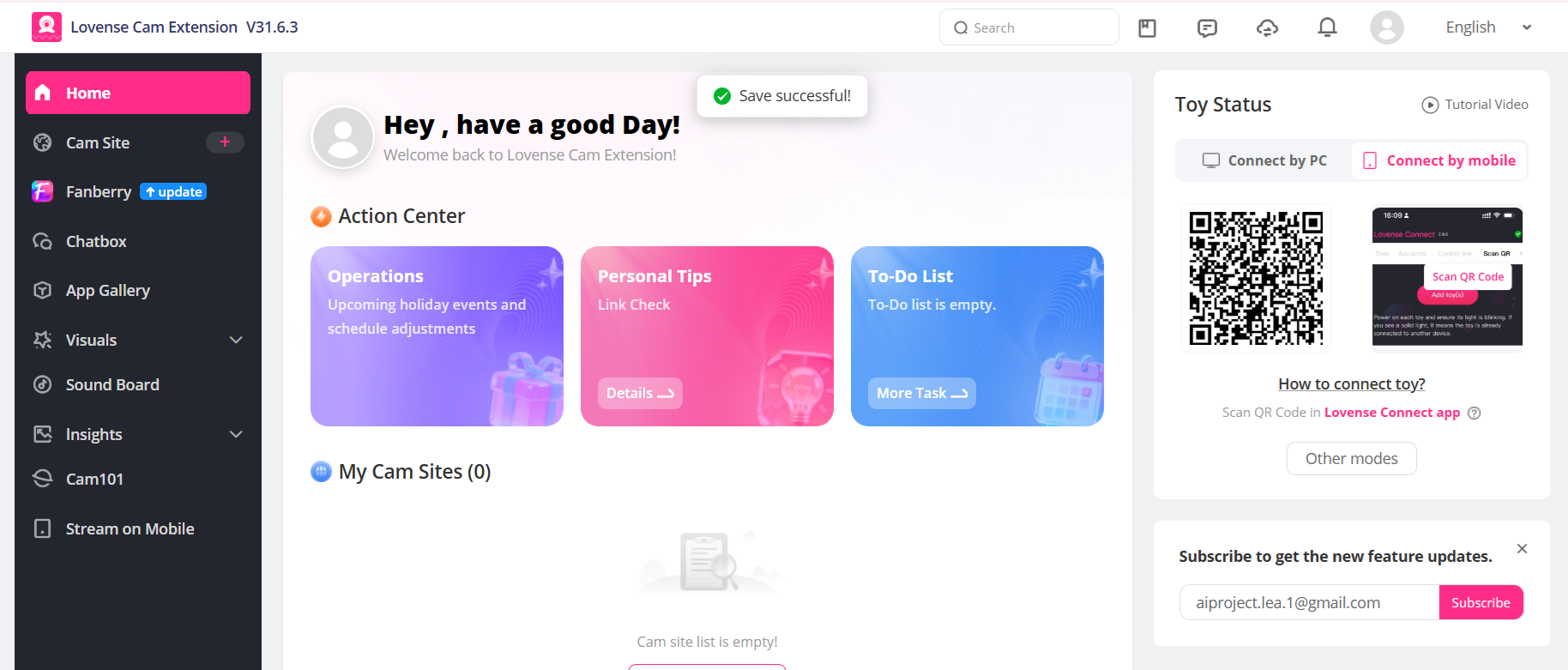
Type FOMO Stream, select it, and click Done.
All Lovense-specific setup is managed in Lovense, not in FOMO Stream.
That includes:
toy connection
extension settings
Lovense feature behavior
overlay-related setup
Lovense supports extra Creator features, such as a widget for quick access while streaming and video overlay support, but those are documented by Lovense and should be configured using their guides rather than in FOMO Stream.
Go to the My Stream page on FOMO Stream. This is where stream monitoring happens and where the Lovense extension UI should load if everything is set up correctly on the Lovense side.
Once the Lovense UI is visible on the My Stream page, you are ready to start your livestream on FOMO Stream.
Try these steps in this order:
Refresh My Stream page
Disable the Lovense extension
Enable the Lovense extension again
Refresh My Stream page again
Recheck your Lovense extension settings, and make sure you click Save after changing your settings
Fully restart your browser if needed
Please visit Lovense’s guide for overlay setup and toy settings.
If everything is set up correctly, the Lovense UI should appear on your My Stream page. You can also test whether your toy reacts by using the Lovense extension’s Test Send Tip button. When you receive a Super Chat, your toy should react.
No. For now, this setup is supported on desktop only.
No. This setup is for livestreams only.
Please use Lovense’s official page for:
extension installation
account setup
toy connection
overlay setup
advanced extension settings
Lovense-specific troubleshooting
If you need further help, please contact us at hello@fomostream.io.